Cash & Bank
Cash & Bank
What it is for
Cash & Bank covers the movement of money and how it connects back to invoices. Here you take cash in, pay suppliers, allocate payments against invoices, reconcile with the bank statement and see how much will be on the account a week from now. The key idea of the module: a payment on its own closes nothing. An invoice counts as paid only once a payment has been allocated to it — allocation is what moves the invoice status and produces the FX difference.
The cash workbench
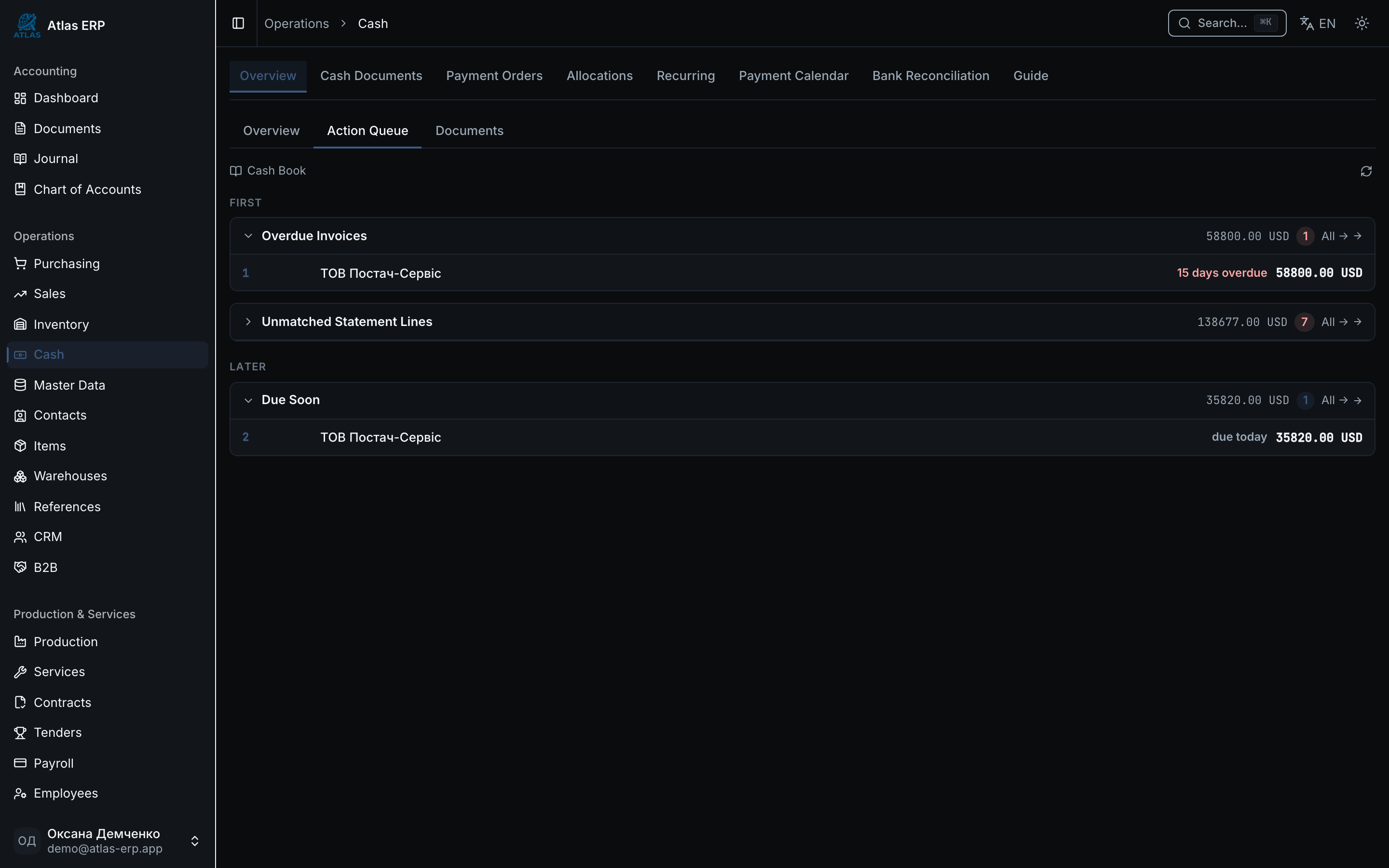
The first screen of the module is a workbench with five queues. Each shows something that needs action:
- Overdue invoices to pay — the due date has passed.
- Invoices due in the coming days — so nothing slips.
- Unallocated payments — money moved, but is not tied to any invoice.
- Unmatched statement lines — the bank shows an operation with no counterpart in the system.
- Overdue planned entries — something you planned to do and did not.
Day thresholds for every queue are configured in Settings. There is not a single hard-coded number in the code: if your company treats an invoice as urgent ten days before the due date rather than seven, that is simply a different value in settings.
The second tab of the workbench is Documents: a single feed of cash-in, cash-out and payment orders with an allocation badge (allocated, partial, none) and a source badge (from statement, manual, recurring).
Core scenarios
Scenario 1: Paying a supplier invoice
- Open Cash & Bank → Documents → Create, or Payment orders → Create.
- Pick the contact, the bank account and the amount.
- The system fills in the rate itself — from the rate book, for the document date. The rate field is locked on purpose, so that no entry is ever posted at an accidental rate.
- If a contractual rate is genuinely needed, tick "Custom rate". The field unlocks, but the system will require a reason. Without one the document will not save.
- Post the document.
- Go to Allocations and tie the payment to an invoice. The invoice status moves to partially or fully paid.
If the rate book has no rate for that currency pair on that date, the system refuses with a clear message rather than defaulting to one. This is deliberate: a silent rate of 1.00 on a foreign-currency transaction is the most expensive mistake in bookkeeping — you find it a week later in a balance sheet that no longer balances.
Scenario 2: Bank reconciliation
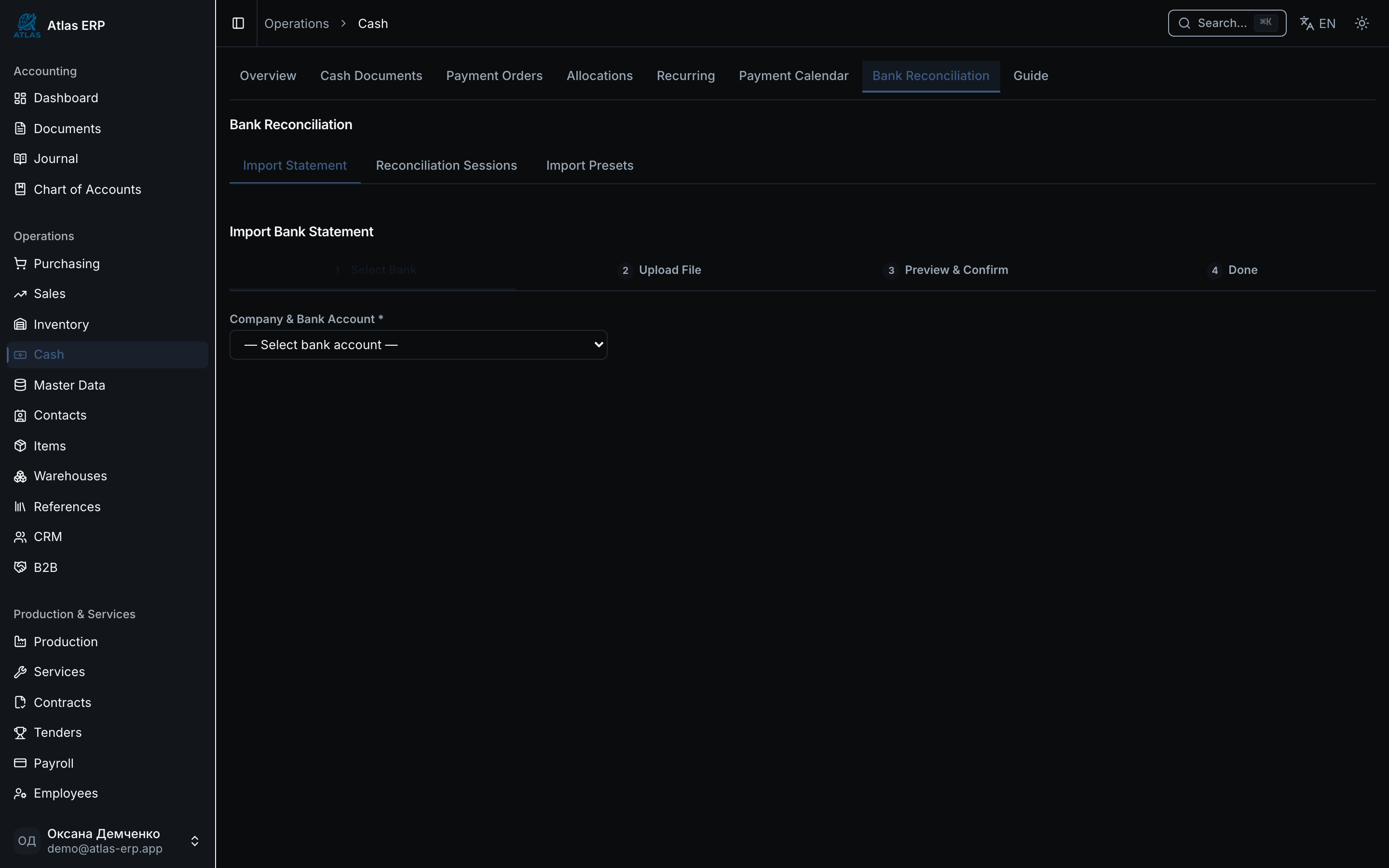
- Cash & Bank → Reconciliation → Import statement.
- Pick the file. Seven formats are supported, including MT940 and CSV with a per-bank column map.
- The system parses the file and matches lines against existing payments automatically.
- Whatever does not match stays in the list. For those lines you can create draft documents in one click.
- Re-importing the same file does not duplicate lines.
Scenario 3: The payment calendar
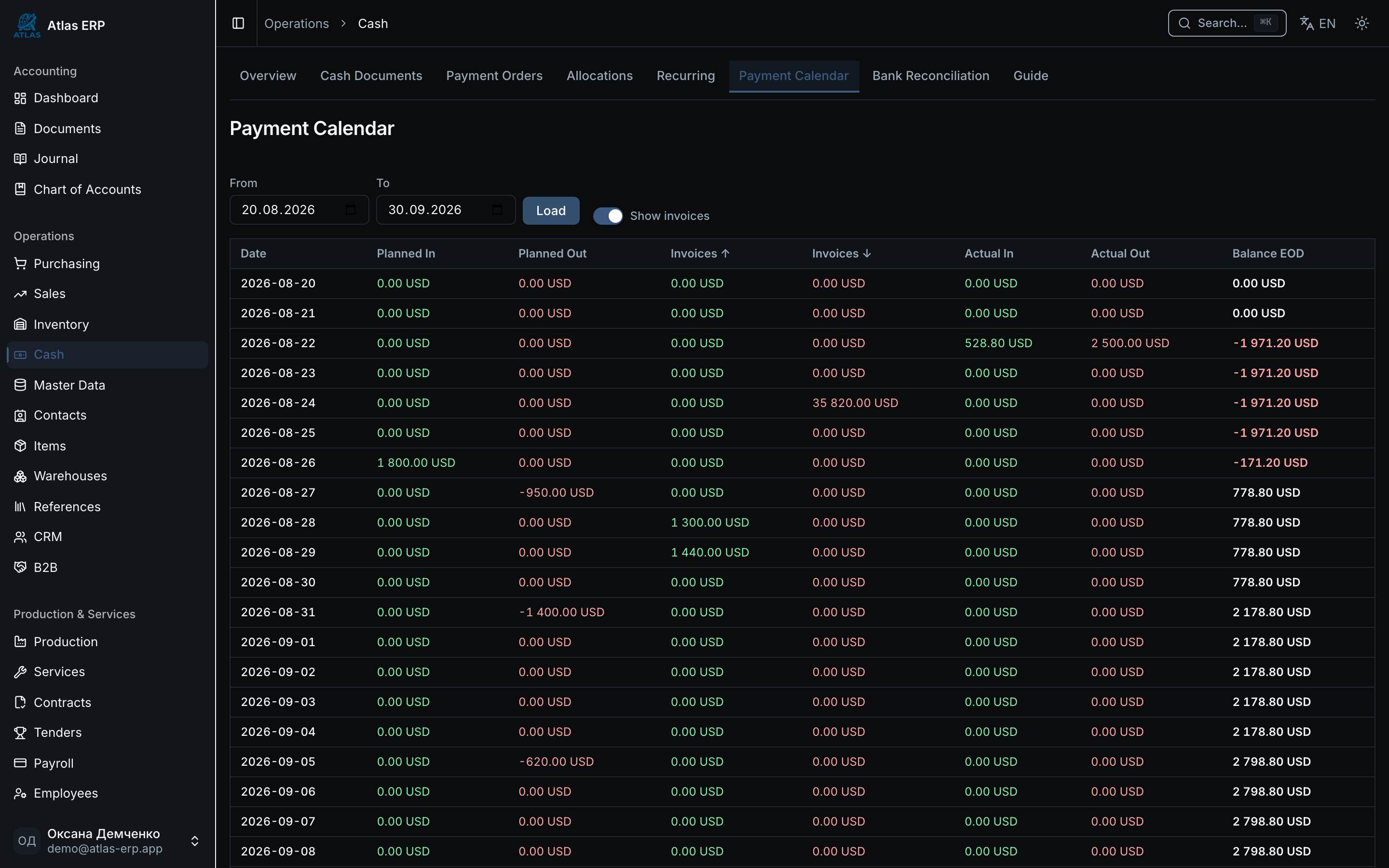
The calendar shows three distinct layers per day, and it matters not to mix them up:
| Layer | Where it comes from | What it means |
|---|---|---|
| Plan | Planned entries you created by hand | "We intend to pay" |
| Forecast | Invoice due dates | "We are owed" / "we owe" |
| Actual | Journal entries | "The money actually moved" |
The forecast is switched on with the "Show invoices" toggle. One important detail: the forecast is not included in the end-of-day balance. The balance is factual only — otherwise you would be looking at money that does not exist yet.
The forecast shows the amount still owed, not the invoice total. If 500 has already been allocated against an invoice of 1800, the calendar shows 1300.
Scenario 4: The cash book
A printable register of receipts and payments for a period, with opening and closing balances. It is built from journal entries rather than from documents — which is why the cash book always agrees with the trial balance. If the two ever disagree, the problem is in the entries, not in the book.
Tips
Do not leave payments unallocated. A posted payment with no allocation is money that moved without closing any invoice. The "unallocated payments" queue exists precisely for this; the day threshold tells you when it is time to look.
A custom rate is an audit trail, not a way around the check. The reason you type is stored with the document and visible in the audit log. Use the field for contractual and special bank rates, not to "post it faster".
The difference between a draft and a posted document is fundamental. A draft changes nothing in the books: it creates no entries, does not affect balances and does not appear in reports. Entries appear only on posting.
Reconcile regularly, not at quarter end. The smaller the gap between an operation and its reconciliation, the easier it is to remember where that puzzling statement line came from.
The Cash & Bank guide
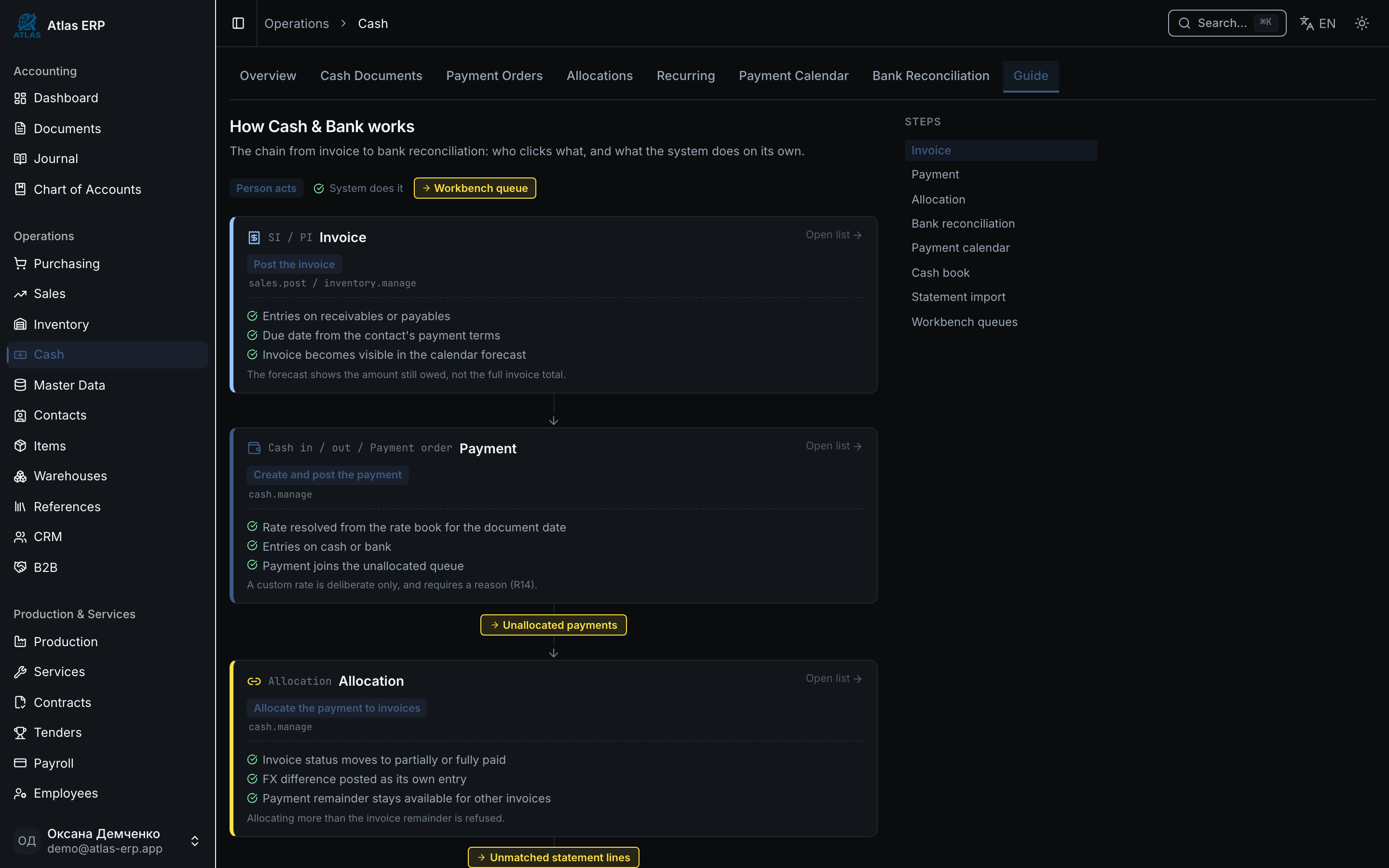
The module has a "Guide" tab — a visual map of the whole chain with hints about who presses the button and what the system does on its own. Green rows are automatic actions, yellow chips are queues you can open in one click. At the bottom there is a "where things live" table linking to every screen of the module.