Inventory
Inventory
What it is for
Inventory keeps quantity-and-value records of everything physically sitting in your warehouses: goods, materials, raw stock, finished products. You can see how much of each item is on hand, how much is reserved against orders and how much is actually available to sell.
The key idea of the module: balances are never edited by hand. Every change in quantity is a document. Found a surplus while counting — that is a stock posting. Goods spoiled — a write-off with a reason. Moved to another warehouse — a transfer. So at any moment you can answer "why is the number exactly this" and show the paper.
The inventory workbench
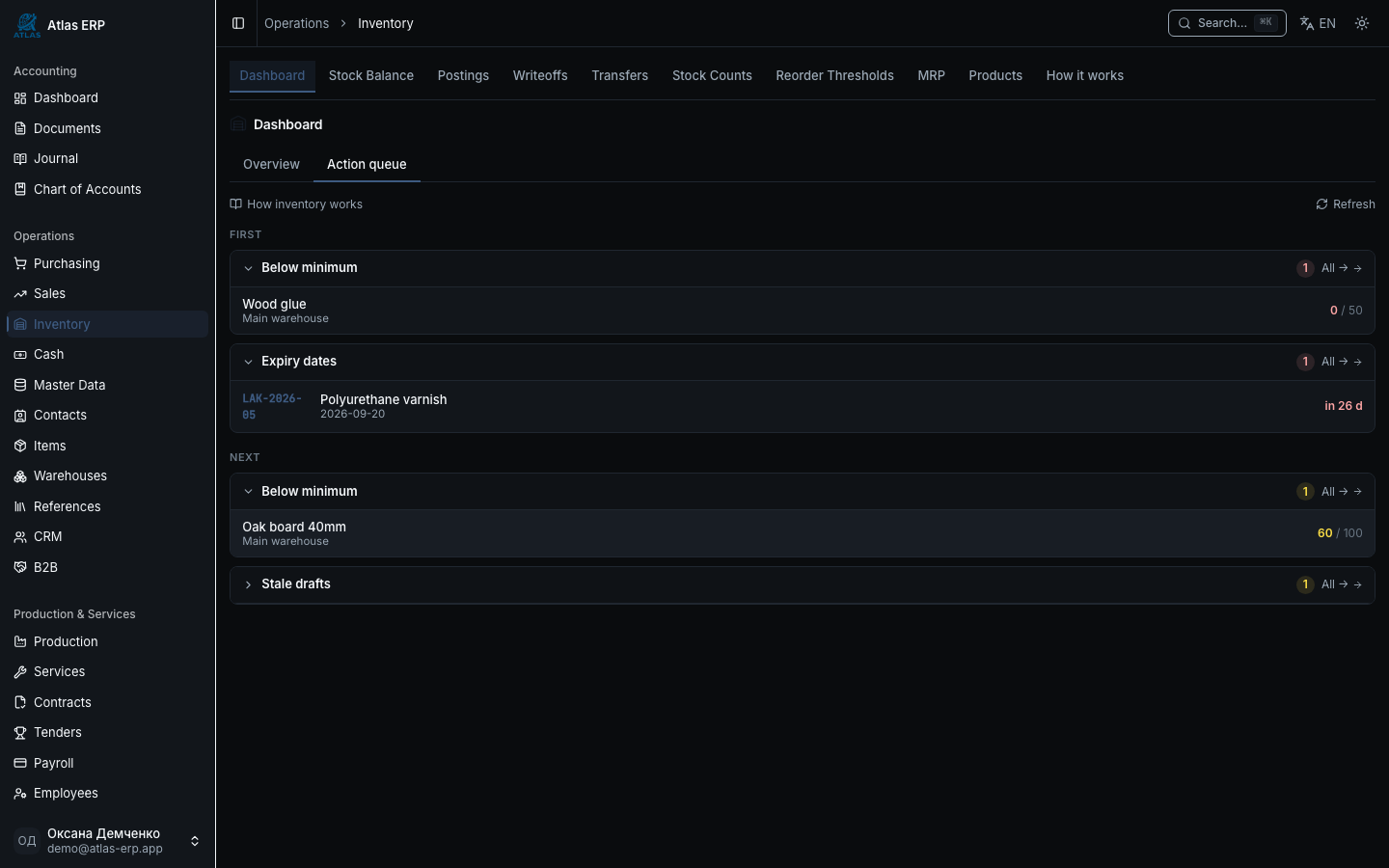
The first screen of the module has two tabs. Overview shows two widgets: items below their minimum level, and batches whose expiry date is approaching. Action queue is the workbench with five queues, each meaning somebody needs to do something:
- Below minimum — stock dropped under the reorder threshold.
- Missing components — the product cannot be built from what is currently in stock.
- Expiry dates — a batch has expired or is close to expiring.
- Stale drafts — a stock document was created and never posted.
- Negative available stock — more was reserved than physically exists.
Thresholds are configured in Settings → Inventory workbench: how many days ahead to warn about expiry, after how many days a draft counts as stale, and from what percentage below the minimum an item becomes critical. There is not a single hard-coded number in the code — if your goods have a one-year shelf life and warning 90 days ahead is too early, that is simply a different value in settings.
Queues are grouped by urgency: First for what is already burning, Next for what should be handled in the coming days.
The item card
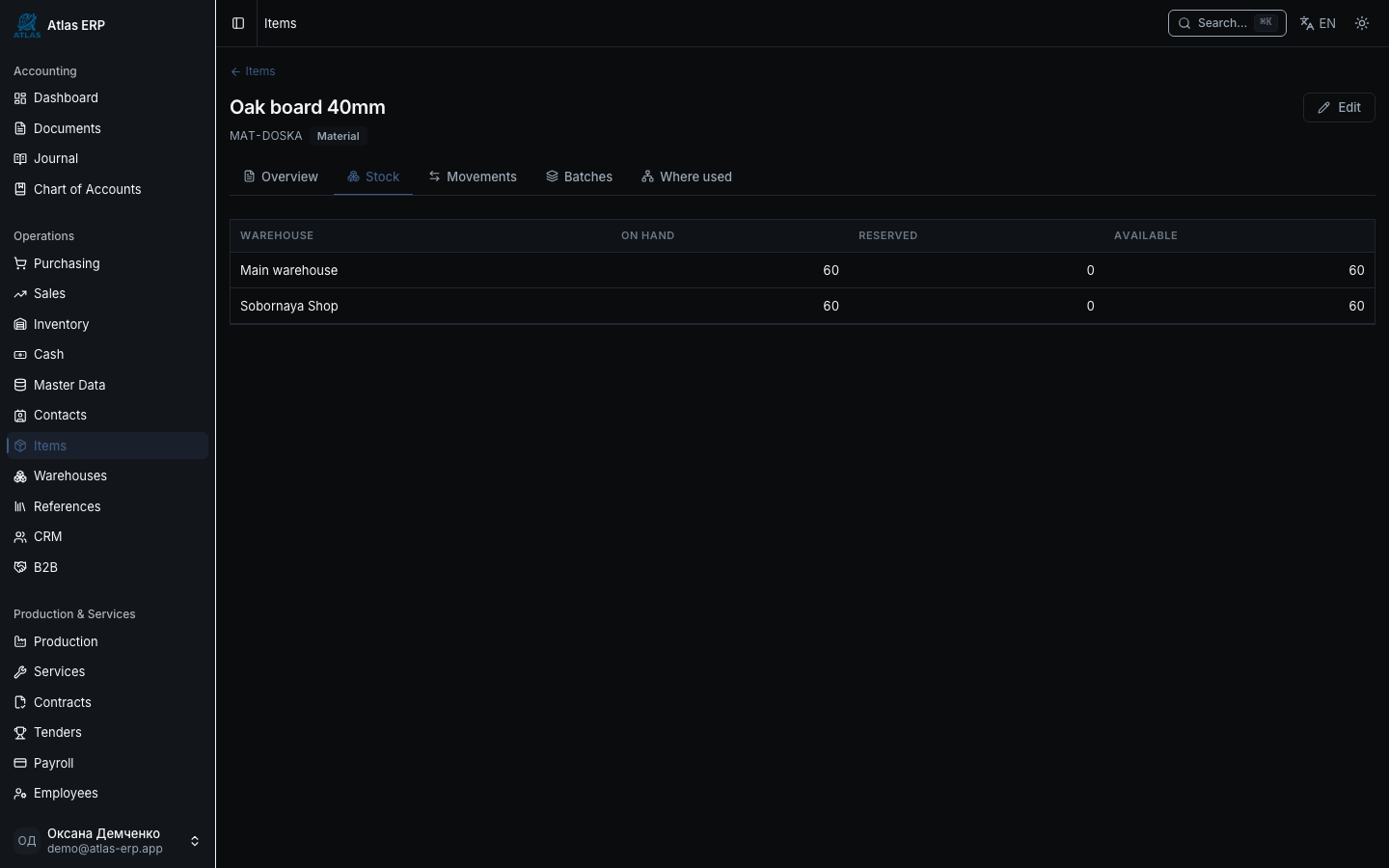
Clicking a row in the item list opens the item card — a separate page with five tabs:
- Overview — code, type, costing method, total available quantity.
- Stock — how much sits in each warehouse, how much is reserved and how much is available. Negative available is highlighted in red: that is a signal, not decoration.
- Movements — the full feed of receipts and issues with links to the documents.
- Batches — number, serial, production and expiry dates, quantity on hand. The "Expired" or "Expiring" badge is computed by the server using the same threshold as the workbench queue, so the card and the queue never disagree.
- Where used — which bills of materials and service compositions include this item.
Items without inventory tracking (services) have no stock tabs at all — empty tables there would serve no purpose.
Main scenarios
Scenario 1: adding an item to the catalogue
- Inventory → Items → Add item. Fill in the code, name, type and base unit of measure.
- Choose the costing method — FIFO or weighted average.
- Optionally fill in the accounts. If the chart of accounts is configured, defaults are filled in for you.
- Save — the item appears in the catalogue and becomes available in every document.
Scenario 2: a stock posting without a purchase order
Goods arrive not only from suppliers: count surpluses, returns from production, opening balances when you first start.
- Inventory → Postings → New posting. This is a full page, not a pop-up — the create form looks exactly like the view.
- Fill in the warehouse, date, reason and the lines: item, quantity, unit cost.
- Post — the balance grows, the batch cost is fixed, and the movement lands in the stock register.
You can save a draft and come back later. But remember: a draft changes nothing in the books. If it sits longer than the threshold, it shows up in the "stale drafts" queue.
Scenario 2a: capturing a batch on receipt
A batch is born on receipt: both in a stock posting and in a goods receipt from a supplier (Purchasing → Goods receipts). The second is the main path — that is how goods usually reach the warehouse. Each posting line has four fields underneath the item: batch number, expiry date, production date and serial.
Fill in the number only when batch tracking is genuinely needed: most items do not need it, and an empty number means "line without a batch". Dates alone do not create a batch — the number is what does.
If the same batch arrives a second time, the system does not create a duplicate: it finds the existing one by number. Dates it already knows are never overwritten — if the first delivery set expiry to 31 December, a second delivery with a different date will not move it. What the system did not know (say, the production date) is filled in.
Once posted, the batch appears on the Batches tab of the item card, and if the expiry is close, in the workbench queue as well.
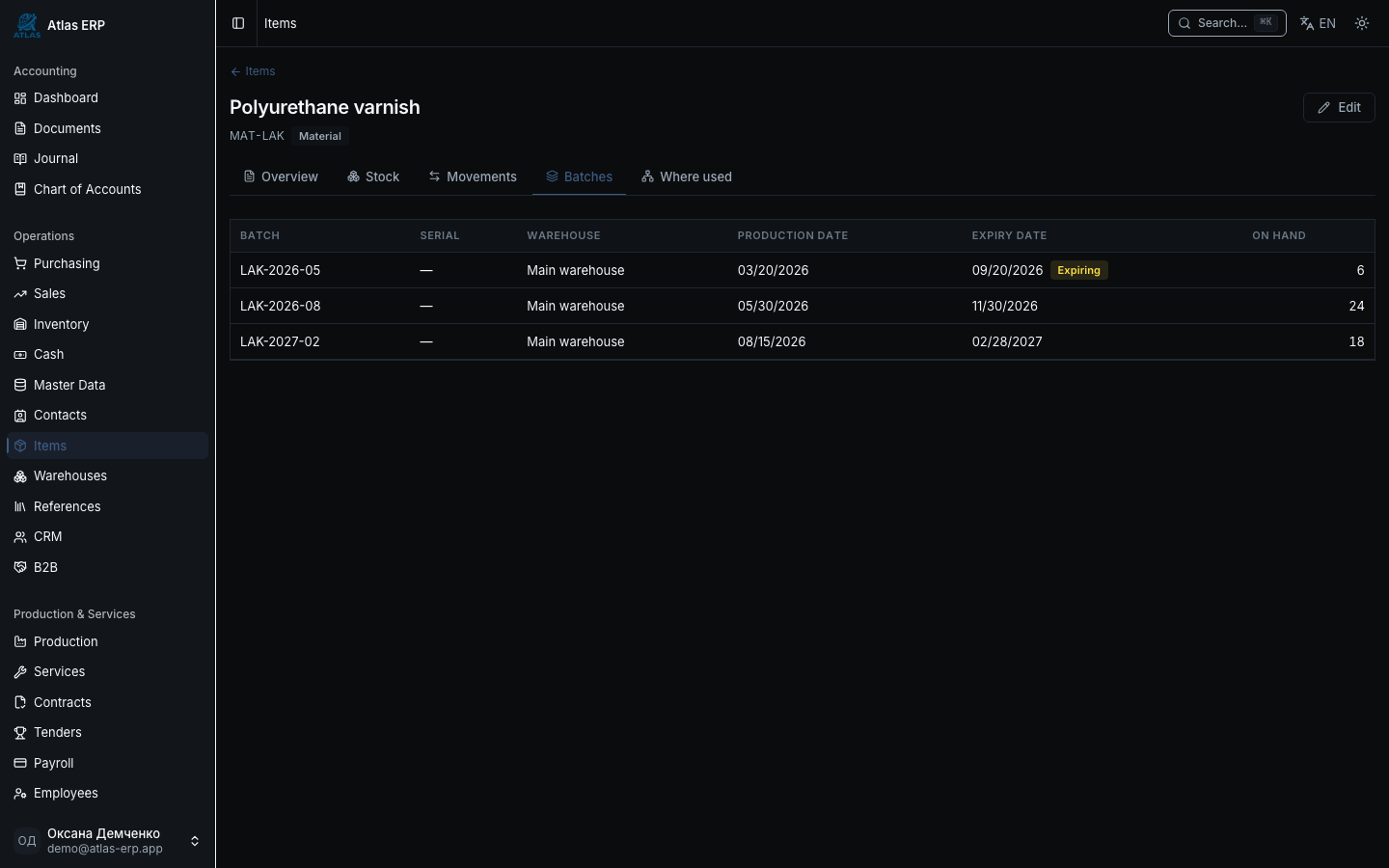
Batches are listed in FEFO order — soonest to expire first. The "Expiring" badge appears once the configured threshold is reached, by default 90 days before the expiry date.
Mistyped the number? A batch can be removed from the card while it is unused — as long as it has neither stock nor a single movement. Once it has arrived with goods and the document is posted, it becomes part of the history and can no longer be deleted. That is deliberate.
Scenario 3: looking at balances
Inventory → Stock balances. For every item and warehouse you see:
- On hand — the physical quantity.
- Reserved — booked by confirmed sales orders.
- Available — the difference. This is the number checked when shipping.
Available quantity is computed by the server, not the browser — which is why it is identical everywhere: in balances, on the item card and in the workbench queue.
Scenario 4: transfer between warehouses
- Inventory → Transfers → New transfer. Pick the source warehouse, the destination, the date and the lines.
- For batch-tracked items the batch picker is there too — the list is computed for the source warehouse, since that is where the goods leave from.
- Post — the balance falls in one warehouse and rises in the other.
Cost is carried over with the goods and is not revalued. The total inventory value of the company after a transfer is unchanged — only the location moved. That is why the printed transfer note has no amount column: the number you would put there simply does not exist in the document.
Scenario 5: write-off
- Inventory → Write-offs → New write-off. Warehouse, date, reason, expense account, lines.
- For batch-tracked items a batch picker appears under the line. Batches are listed in FEFO order — soonest to expire first, and that one is marked as suggested. It is a hint, not a rule: there are reasons to issue a different batch and the system does not forbid it. Leaving "Any" is fine too — then the costing method picks.
- Post — the quantity is issued, cost is taken by the item's method (FIFO or average), and the journal entry hits the expense account.
The reason is stored on the document. This is not a formality: it is exactly what an auditor asks for later, and it is what distinguishes broken glassware from theft.
Scenario 6: stock count
- Inventory → Stock counts → New count. Pick the warehouse and date.
- Start — the system fills in the expected quantities from the books.
- Enter the counted quantities. The difference column updates immediately: a shortage is highlighted in red, a surplus in amber.
- Post — a surplus becomes a stock posting, a shortage becomes a write-off.
You can take the printed count sheet with you to the warehouse: its "Counted" column is left blank so the commission can write the numbers in by hand. Totals on the sheet report surplus and shortage separately — a single "difference" figure would net them off and hide the scale of both.
Printed forms
Each of the four stock documents has a PDF button on its detail page: stock posting act, write-off act, transfer note, count sheet. The forms carry the company details, number and date, warehouse (both, for a transfer), the lines table and space for signatures.
Tips
Do not leave drafts lying around. A document that was created but never posted changes nothing: no journal entries, no effect on balances, invisible in reports. The "stale drafts" queue exists precisely so those documents do not get lost.
Set your reorder thresholds. Under Inventory → Reorder settings define a minimum quantity per item and warehouse. Until a threshold is set, the "below minimum" queue stays silent for that item — there is nothing to compare against.
FIFO gives a more accurate issue cost — prefer it for goods whose price moves often. Weighted average is simpler and behaves more calmly across a large catalogue with small price fluctuations.
Negative available stock is always a bookkeeping error. It means reservations exceed what is physically there: either a shipment was never posted, or an order was confirmed against goods that do not exist. This queue has no threshold and is always red.
Do not delete posted documents. Once posted, postings, write-offs and transfers are part of the financial journal. If you made a mistake, cancel the document and create a new one — the history has to stay visible.
The inventory guide
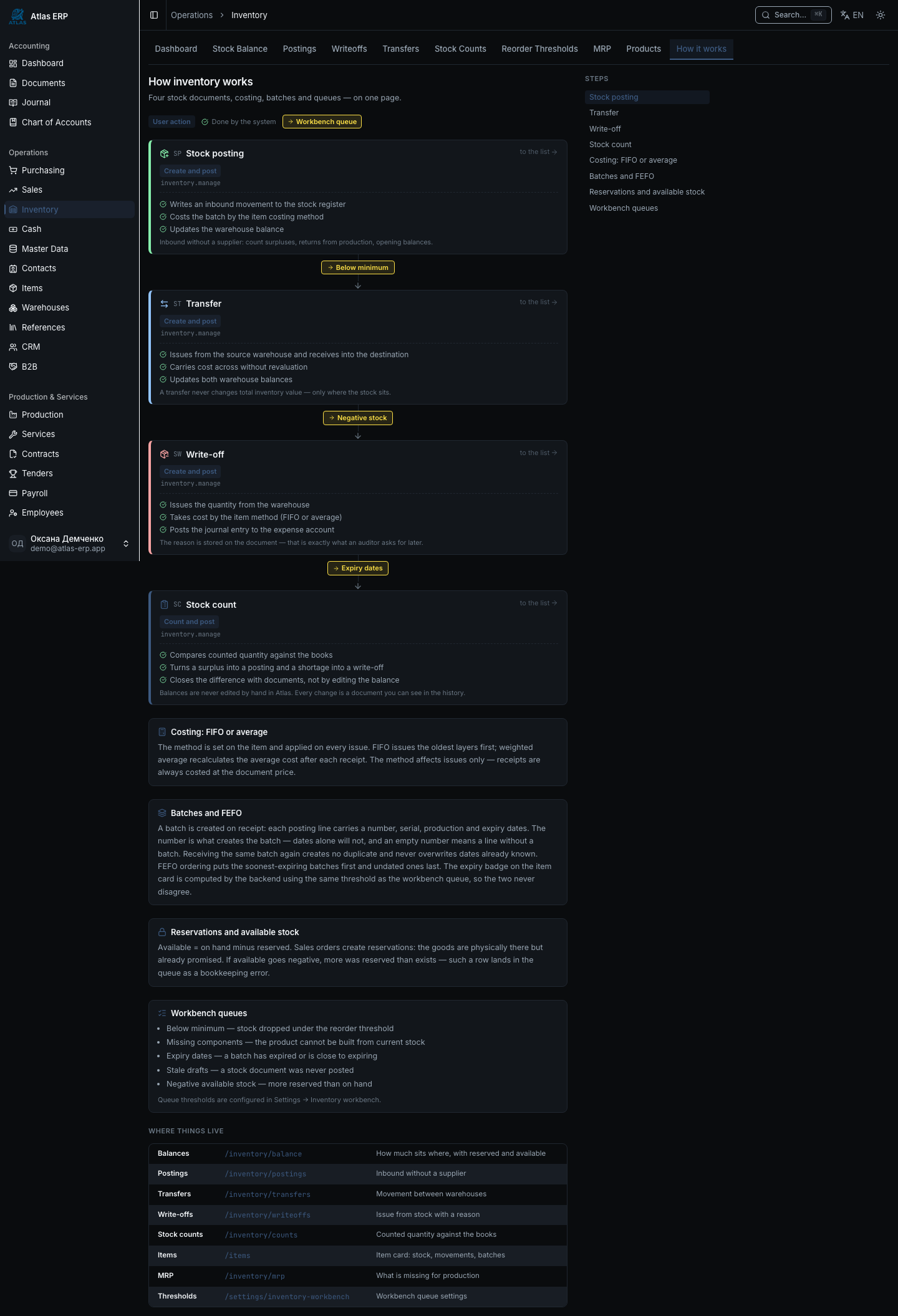
The module has a "How it works" tab — a visual map of the chain Posting → Transfer → Write-off → Stock count, with notes on who presses the button and what the system does on its own. Green lines are automatic actions, amber chips are workbench queues you can open in one click. Below it are explanations of costing, batches with FEFO and reservations, and at the end a "where things live" table linking to every screen in the module.